Building DroidBridge: Android Devices AI Agents Can Use
Mirror and control Android devices inside VS Code, and let AI agents test your app on a real phone.
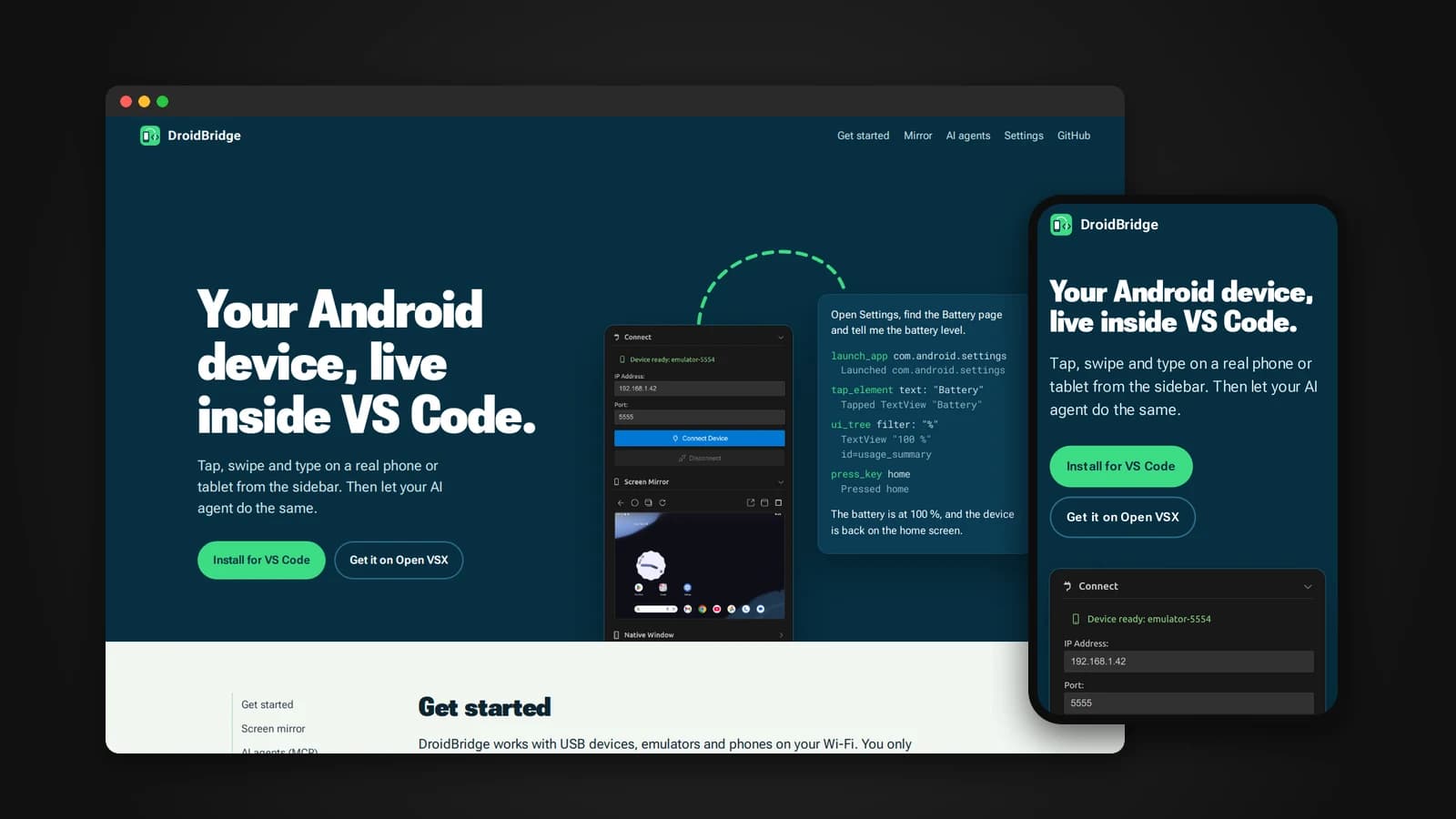
Mobile development has an awkward loop. You write code in your editor, build, then turn to a phone on your desk or a mirror window floating somewhere else on the screen, tap through the app, check the logs in a terminal, and come back. DroidBridge is a VS Code extension that pulls all of that into the editor: your Android device connects, streams and responds right in the sidebar. And it does one more thing that changes the loop entirely. It lets AI agents use the device too.
This article covers what DroidBridge does, how it handles the tools underneath it, and why giving agents a real phone to test on is the part I am most excited about.
Your device, inside the editor
DroidBridge works with phones on your Wi-Fi, USB devices and emulators. Open its view in the activity bar, connect, and click Start Mirror. The device screen streams live into the sidebar and stays fully interactive.
- Click to tap, click and drag to swipe, and use the mouse wheel to scroll.
- Click the mirror and type to send text. Enter, Backspace and the arrow keys work.
- Right click or Escape goes Back, and toolbar buttons handle Home, recent apps and rotation.
The mirror keeps the device's shape at any sidebar width and follows rotation live, so a phone in portrait and a tablet in landscape both fit properly. When you need more room, it moves into a resizable editor tab, which you can drag out into its own window and dock back in the sidebar later. If you prefer the classic scrcpy window, that option is still there, with an always-on-top setting.
The embedded mirror needs nothing extra installed. The scrcpy server it uses is bundled with the extension, unmodified, so all the mirror needs on your computer is ADB.
Letting AI agents drive the device
This is what makes DroidBridge different from a mirroring tool. It ships a built-in MCP server, using the Model Context Protocol that coding agents use to talk to outside tools. Through it, an agent can see the screen, read what is on it, tap, swipe, type, read logs and install builds, on your real device or emulator.
That turns requests like these into things an agent can actually do:
- "Install the debug APK, log in with the test account and tell me if the dashboard loads."
- "Open the settings screen and check logcat for the crash. Explain the cause."
- "Rotate the tablet and check whether the checkout layout still fits."
Keep the mirror open while the agent works and you can watch every tap it makes, live, in your sidebar.
What the agent can use
list_deviceslists connected devices and emulators. With more than one connected, every other tool takes a serial number to pick the device.screenshotreturns the screen as an image, along with the scale back to real device pixels.ui_treelists the elements on screen with their text, descriptions, IDs and tap positions.tap_elementfinds an element by its text, ID or description and taps it.tap,long_pressandswipegive direct touch input in device pixels.type_textandpress_keyhandle typing and keys such as Back, Home, Enter and the volume buttons.current_app,list_appsandlaunch_appinspect and start apps.install_apkinstalls or updates an APK from your computer.logcatreads recent logs, filtered by level or text.shellruns anadb shellcommand on the device.
The combination matters more than any single tool. ui_tree gives the agent a structured view of the screen, so it can tap a button by its label instead of guessing coordinates from a picture, and screenshot covers what the element tree cannot see. Pairing that with logcat means an agent can reproduce a bug and read the crash that explains it, in one session.
Setting it up
DroidBridge aims to make this a single step for each kind of client.
- GitHub Copilot in VS Code: nothing to set up. Open Copilot Chat in Agent mode, open the tools picker and enable DroidBridge Android.
- Claude Code: run "DroidBridge: Set Up AI Agent Access (MCP)" from the command palette, choose Claude Code, and paste the copied command into a terminal.
- Cursor, Claude Desktop, Windsurf and others: run the same command, choose the JSON option and add it to the client's MCP configuration.
For Claude Code, the copied command looks like this:
claude mcp add droidbridge -e DROIDBRIDGE_ADB="/path/to/adb" \
  -- node "/path/to/globalStorage/lusansapkota.droidbridge/mcp-server.js"
External clients start the server with Node.js 18 or newer. One small detail I cared about: the copied path stays the same when DroidBridge updates, so your agent setup does not silently break after an upgrade.
A word on trust
An agent acts on your device the way you would, so it deserves the same care. Review what you allow it to run, especially shell and install_apk. Most MCP clients ask before each tool call, and keeping the mirror open means you always see what is happening.
Handling the tools underneath
DroidBridge stands on two excellent tools, ADB and scrcpy. Setting them up is usually the most frustrating part for people new to Android tooling, so the extension handles it.
When it starts, DroidBridge looks for them in order:
- Your custom paths from the settings, if you set any.
- Your system PATH, which covers Homebrew, apt and Chocolatey installs.
- The standard install locations for your platform.
- If nothing is found, it downloads them from a dedicated binaries repository.
It works on Windows, macOS and Linux. Commands in the palette let you check what was detected, download anything missing, or scan again. Without internet access, you can install the tools yourself and point DroidBridge at them, and everything works offline.
Connecting over Wi-Fi
USB devices and emulators appear on their own: the sidebar shows "Device ready" as soon as ADB sees them. Wireless takes one extra step on newer Android versions.
- Turn on developer options: Settings, About phone, then tap Build number seven times.
- Open Developer options, then Wireless debugging.
- Pair once, using the code Android shows, in the Wireless Pairing section of the sidebar.
- Enter the IP address and port under Connect.
Two things trip people up here, so the docs call them out: pairing codes expire after about a minute, and the port you connect to is different from the port you paired with. DroidBridge remembers your last ten connections, so after the first time, reconnecting is one click.
Tuning the mirror
The defaults suit most phones on a decent network. Two settings handle the rest.
droidbridge.scrcpy.maxSizesets the longest side of the mirror in pixels, 1024 by default. Use 0 for native resolution, or lower it to 720 on slow Wi-Fi.droidbridge.scrcpy.bitratesets the video bitrate,8Mby default. Raise it for sharp, high-resolution tablets, or lower it to4Mon a slow network.
If the mirror ever freezes, stopping and starting it from the toolbar fixes it, and the log output includes the mirror server's own messages for anything stranger.
What building it taught me
- The setup is part of the product. Detecting and downloading ADB and scrcpy matters as much as any feature, because a tool people cannot get running might as well not exist.
- Agents need structure, not just pixels. A tree of on-screen elements with labels and positions lets an agent act reliably. A screenshot alone leaves it guessing.
- Small reliability details add up. A setup path that survives upgrades, a remembered connection, a clear message when pairing fails: none of these are exciting, and all of them decide whether people keep using a tool.
- Shipping to a real marketplace changes how you build. Publishing version 1.0.0 to both the VS Code Marketplace and Open VSX meant thinking about every editor that installs from Open VSX, not just my own setup.
Try it
Search for DroidBridge in the VS Code Extensions view, or install it from the command line:
code --install-extension lusansapkota.droidbridgeIt is also on Open VSX for editors that install from there. You need VS Code 1.104 or newer and a device running Android 5.0 or newer with USB or wireless debugging turned on.
The documentation is at lusan-sapkota.github.io/DroidBridge, and the source code is on GitHub at github.com/Lusan-sapkota/DroidBridge, under the MIT license. DroidBridge builds on scrcpy and Android's ADB, and would not exist without them.