Building Smart-Shell: Plain English to Safe Shell Commands
A terminal assistant that writes shell commands, and the safety model that makes it worth trusting.
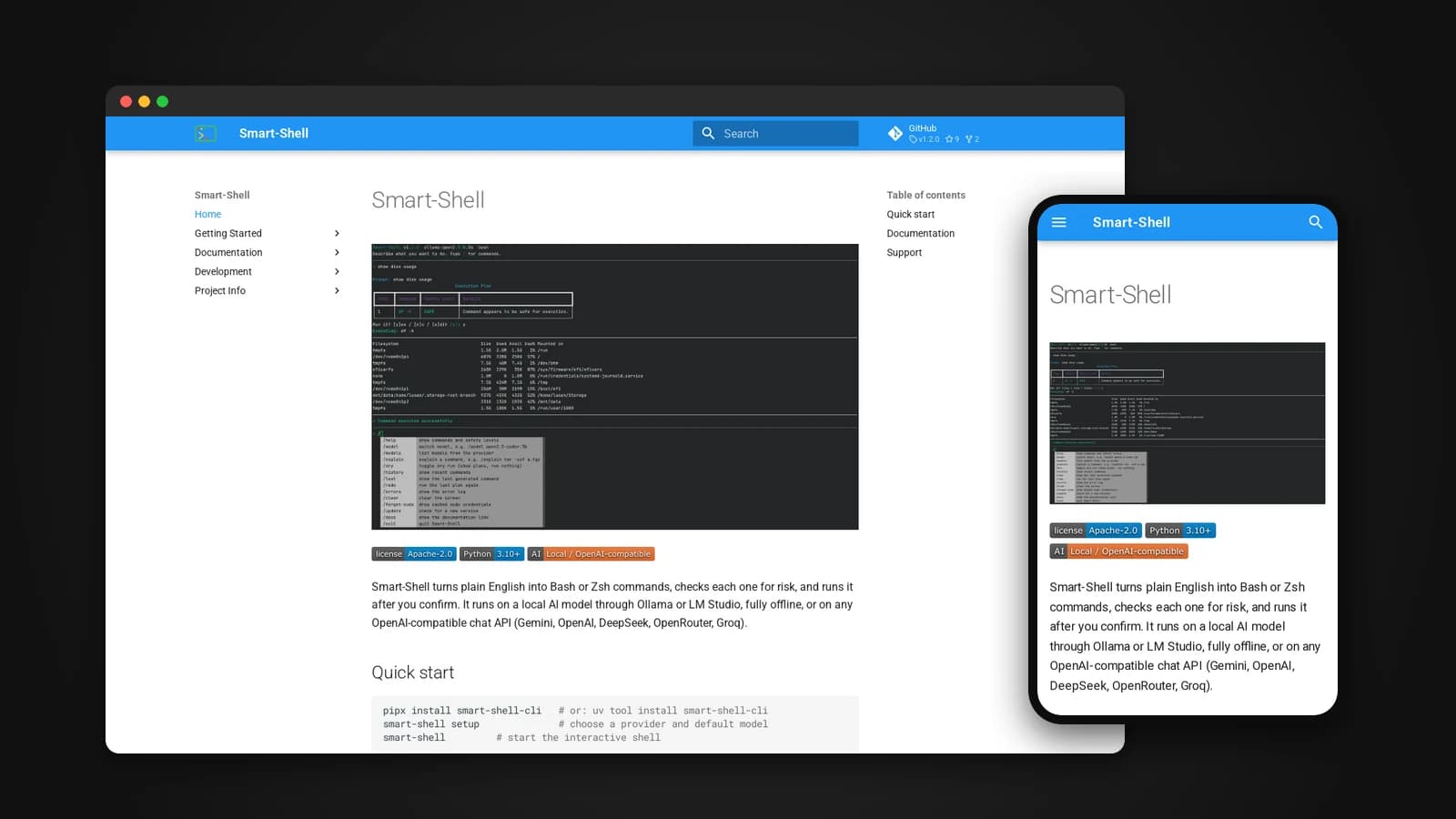
Everyone has a list of shell commands they look up every single time: the right find flags, the tar options, the way to see what is filling up a disk. Smart-Shell lets you just say what you want in plain English. It turns your request into a Bash or Zsh command, checks it for risk, shows it to you, and runs it only after you say yes.
The interesting part of building it was not getting an AI model to write commands. Models are good at that. The interesting part was making a tool that writes shell commands safe enough to actually use. This article is about how Smart-Shell works, how its safety model evolved, and why it runs on local models first.
What it does
smart-shell                                   # interactive mode
smart-shell "list all PDF files here"         # one-off request
smart-shell "free up disk space" --dry-run    # preview only
You describe a task, and Smart-Shell asks a model for a command, or for a short plan of several commands, written for your operating system and your shell. It detects your shell automatically and tells the model which package manager you use, whether that is apt, dnf, pacman, zypper, apk or brew, so the commands fit your system.
Multi-step plans run in a single shell, joined with &&. That means a cd or an environment change in one step carries over to the next, and the plan stops at the first step that fails. Output appears live, and interactive prompts, like a package manager asking for confirmation, still work.
Local first
Smart-Shell runs on a local model through Ollama or LM Studio, fully offline, with no API key and nothing leaving your machine. That is the default for a fresh setup:
ollama pull qwen2.5-coder
smart-shell setup      # choose "ollama"
If you prefer a hosted model, the same client talks to any OpenAI-compatible API, with presets for Gemini, OpenAI, DeepSeek, OpenRouter and Groq, and a custom option for any other base URL. Your saved API key is only ever sent to the server it was saved for.
Supporting small local models shaped the design. One change in the latest release made a real difference: a shorter system prompt. Small local models return valid, well-formed output far more often when the instructions are brief, so trimming the prompt improved reliability more than adding to it would have.
A safety model you can see
A tool that turns sentences into shell commands can delete your home folder if you are not careful. So every command is classified before anything runs, and the preview shows each command with its level and the reason.
- Blocked commands never run. You can only edit or cancel them, and an edited command is checked again. Examples are deleting the root or home folder, fork bombs, and formatting or overwriting a disk.
- High risk commands ask, with the default answer set to no. This covers recursive forced deletes in any spelling, piping anything into a shell, and overwriting system files.
- Medium risk commands also default to no:
sudo, anyrm, force-pushing or hard-resetting git, removing Docker resources, installing packages, changing permissions, stopping services and editing firewall rules. - Info leak commands are ones that may print secrets, such as
env,printenv, echoing a variable named like a key or token, or reading a.envfile. They ask, defaulting to yes, so you notice before secrets land on your screen. - Safe commands like
lsanddf -hask with a default of yes.
When a plan has several steps, the riskiest step sets the default for the whole plan. And every plan offers three answers, not two: yes, no or edit. Often the model is close but not quite right, and fixing one flag is faster than rephrasing the whole request.
Lessons that changed the rules
The safety model did not arrive finished. Several of the rules exist because an earlier version got something wrong.
- A plain
rm fileused to count as safe. Now anyrm, along withrmdir,truncateand emptying a file with>, is medium risk and always asks. - Dangerous commands can hide. The rules now look inside loops and
ifblocks, after newlines, behind wrappers likenohup,timeandenv, and insidebash -c. They also catch piping a download into Python, Perl, Ruby or Node, not just into a shell. - Safe plans used to run immediately. Now every plan asks before it runs, so you always get a chance to read it.
- Your sudo password is never stored.
sudoprompts in your terminal exactly as it normally would. Passwords saved by older versions are removed from the configuration automatically, and/forget-sudoclears cached credentials.
Why auto mode trusts an allowlist
Asking about every command gets tiring for simple, harmless requests, so Smart-Shell has modes, switched with Shift+Tab:
- ask is the default: every plan asks.
- auto runs read-only plans without asking.
- plan shows plans and runs nothing, the same as
--dry-run.
The design decision behind auto mode is the one I am proudest of. The pattern rules that label commands as risky are a blocklist, and a blocklist can always miss some new spelling of a dangerous command. So auto mode does not trust the blocklist. It trusts an allowlist instead. A plan only runs on its own if every step is a plain command from a known list of read-only tools, such as ls, cat, df, grep, git status or find without -delete or -exec.
Anything that could hide another command makes the plan ask: a semicolon, a loop, bash -c, command substitution, backticks, or a redirect that writes a file. A single rm or sudo step is enough to make the whole plan ask. Blocking known bad things is useful for labels and defaults. Only allowing known good things is what makes running without asking safe.
The documentation is honest about the limit too: the checks are pattern-based, they catch common destructive commands, and they cannot prove that a command is harmless. Reading the preview is still the real safety net.
When a command fails
Commands fail, and the error message usually says why. When one does, Smart-Shell offers to send the command and the last lines of its error output to the model, which proposes a corrected plan. That plan is checked and confirmed like any other. Nothing is sent unless you say yes.
Common failures, such as a command not being found, a permission being denied or a file missing, also get a one-line explanation in plain English.
An interactive prompt that feels at home
Running smart-shell on its own starts an interactive prompt in the style of tools like Claude Code and Gemini CLI.
- A
/command menu with descriptions and completion, including model names after/model. - A status bar showing the mode, provider, model, shell and current folder.
- Multi-line input with Esc then Enter, and history search with Ctrl+R.
- Follow-ups that work. Your last few requests are sent as context, so "list the biggest files in Downloads" followed by "now delete the ones older than a year" does what you mean.
/explaindescribes what any command does, along with its safety level.- Notifications when it needs you. It rings the terminal bell, and if you have been away for five seconds or more, it sends a desktop notification through whatever your terminal and desktop support, so you are not left wondering whether it is still working.
Respecting your privacy
It is worth being precise about what reaches the model. Smart-Shell sends your request plus basic information about your operating system and shell, so the command fits your system. In interactive mode it also sends your last five requests from the same session, with the commands generated and whether they worked. It does not send command output or file contents, except the error lines you explicitly agree to share when asking for a fix. With a local model, none of it leaves your machine.
Configuration is stored with permissions that only you can read, and the history file is capped and protected the same way.
What I learned
- Generating commands is the easy part. Deciding which ones are safe to run, and showing that decision clearly, is the actual product.
- Allowlists beat blocklists for anything that runs unattended. You can never list every dangerous command, but you can list the safe ones you trust.
- Let people edit, not just approve. Yes, no and edit is a much better interface than yes or no, because the model is often almost right.
- Small models want short instructions. Cutting the prompt made a local model more reliable, not less.
- Never hold secrets you do not need. Removing stored sudo passwords made the tool simpler and safer at the same time.
Try it
pipx install smart-shell-cli      # or: uv tool install smart-shell-cli
smart-shell setup
There is also an install script that picks uv or pipx for you and adds tab completion and a desktop entry. Smart-Shell needs Python 3.10 or newer and runs on Linux, macOS and WSL, with Bash or Zsh.
The documentation is at smart-shell.lusansapkota.com.np, and the source code is on GitHub at github.com/Lusan-sapkota/smart-shell, under the Apache 2.0 license. As with any AI assistant, it can generate wrong commands, so always read a command before you confirm it.